
Copy the bullet point • for a quick list or an inline separator. This guide explains how to insert it on Windows, Mac, Word, Google Docs, and mobile.
Quick ways to type a bullet point
On Windows, hold Alt and type 0149 on the numeric keypad, then release Alt. On a Mac using the U.S. ABC keyboard, press Option + 8. If a shortcut does not work, copy • below or use the symbol picker.
Copy bullet point symbols
Choose a character below to copy it. The filled bullet • is Unicode U+2022; the other shapes are separate characters that suit different kinds of lists.
If copying is unavailable in your browser, select this character and copy it manually: •.
Bullet point shortcuts at a glance
| Where you’re typing | How to insert • |
|---|---|
| Windows with numeric keypad | Hold Alt, type 0149 on the keypad, then release Alt. |
| Mac, U.S. ABC layout | Press Option + 8. |
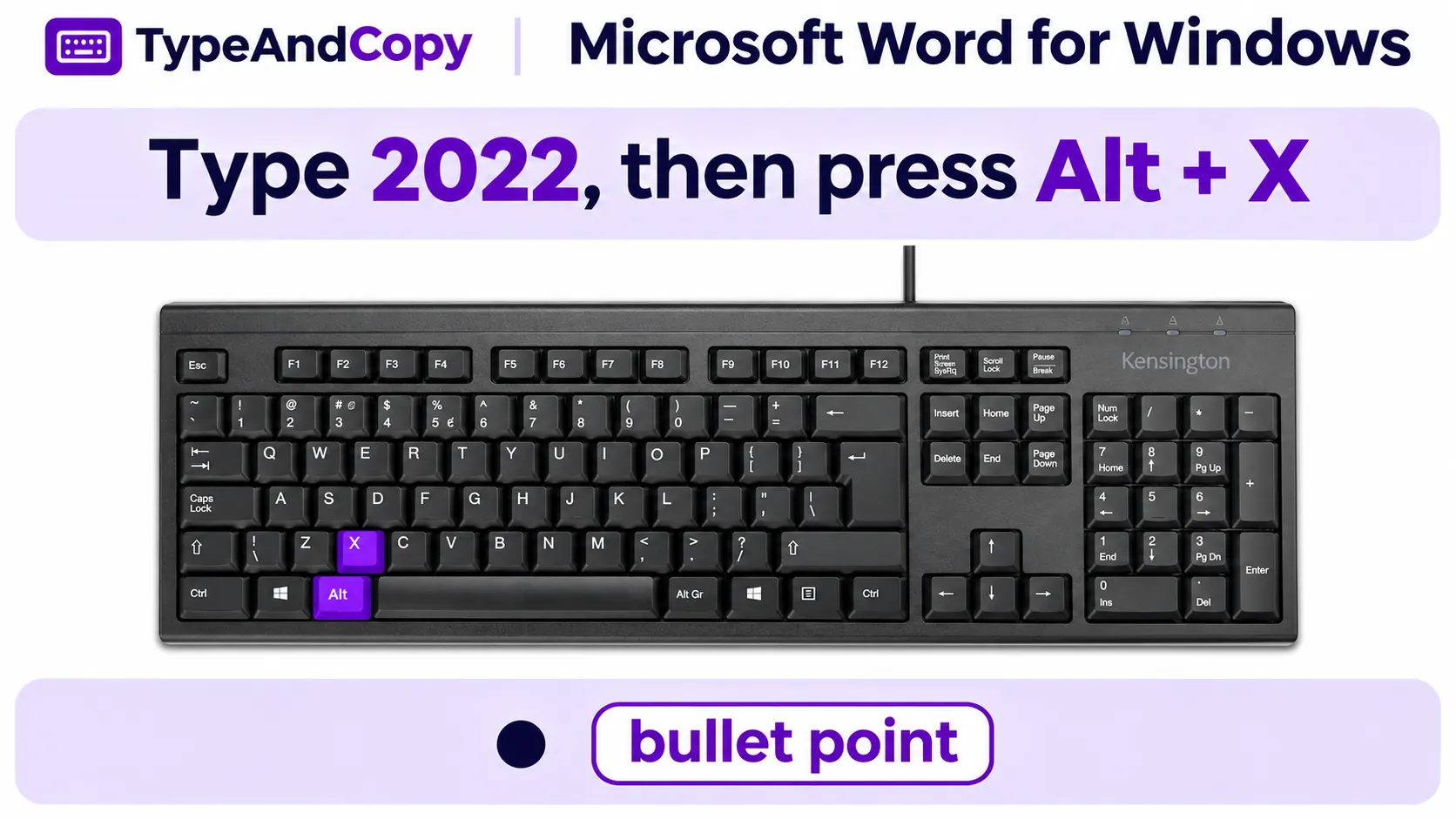
| Word for Windows | Type 2022, then press Alt + X. |
| Google Docs on a computer | Insert → Symbols → Special characters; search for “bullet.” |
| Any device | Copy • from the panel on this page. |
Keyboard layouts and application support differ. The Windows code requires a numeric keypad; Word’s Alt + X conversion is specific to supported Office applications.
Type a bullet point on Windows
- Place the cursor in a document or text field.
- Turn on Num Lock if your numeric keypad requires it.
- Hold Alt, type 0149 on the numeric keypad, then release Alt.
If nothing appears, try another app or use Character Map. The number row above the letters is not a substitute for the numeric keypad. On compact laptops, copying • may be the quickest option.
Insert a bullet on Mac
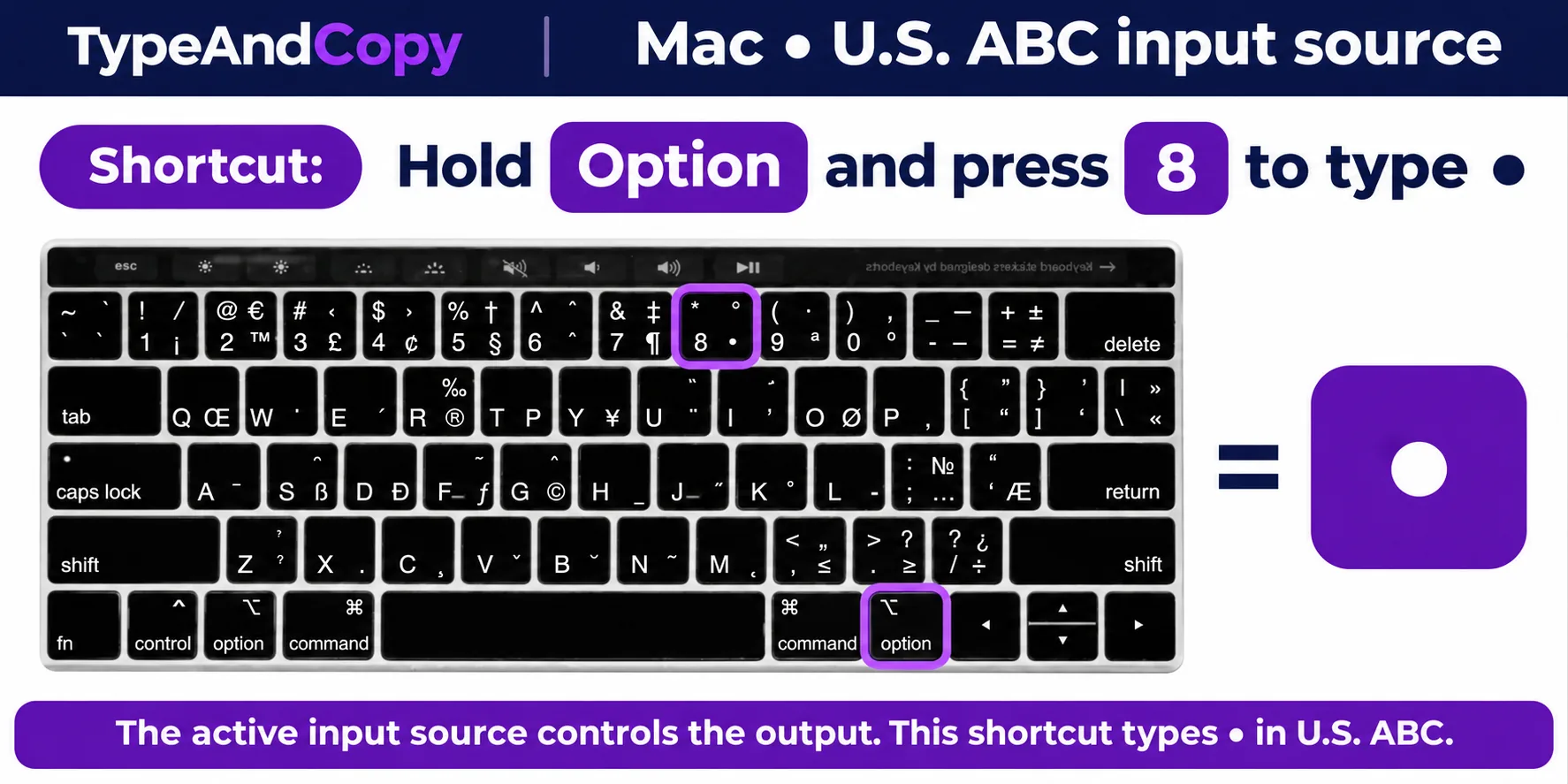
On the U.S. ABC input source, press Option + 8. Other keyboard layouts can differ. Open Keyboard Viewer to check your active layout, or use Character Viewer and search for “bullet.”
Word and Google Docs
For a list that stays formatted as you edit, use your editor’s bulleted-list control:
- In Word, place the cursor where the list should begin and choose Home → Bullets. In Google Docs on a computer, choose Bulleted list in the toolbar.
- Type the first item and press Enter to start the next one.
- Press Enter on an empty list item to end the list. You can also select existing lines before choosing the list button.
For a standalone bullet inside a sentence, paste • or use Word’s Insert → Symbol menu. In Google Docs on a computer, choose Insert → Symbols → Special characters and search for “bullet.” See the Microsoft Word and Google Docs list instructions.
iPhone and Android
Open the symbols view on your keyboard and look for a bullet. Available characters vary by keyboard app. If it is missing, select and copy • from this guide, then paste it into your message.
Use a bullet in Excel
To put a bullet inside a cell, select the cell and choose Insert → Symbol. Search for the bullet or enter its Unicode character code, 2022, in the Symbol dialog, then choose Insert. To put another bullet on a new line in the same cell, use Alt + Enter in Excel for Windows before inserting it. Microsoft also documents Alt + 7 as a numeric-keypad option in Excel. See Microsoft’s Excel instructions.
Bullet symbols and when to use them
The familiar • is a general-purpose bullet. The white bullet ◦ can help distinguish a second level in plain text, while the square ▪ can mark a separate group. The triangular bullet ‣ gives a directional look. These are individual text characters; they do not automatically create an accessible list structure in a document.
For example, “Tea • Coffee • Water” uses inline bullets to separate items on one line. For a list with one item per line, use your editor’s list control. That lets the editor handle indentation and makes the list structure available to assistive technology.
Unicode and HTML codes
The standard bullet is U+2022. In HTML source, you can write • or •. These are HTML representations of •; in ordinary text, paste the character itself. In desktop Word for Windows, type 2022 and press Alt + X to convert the hexadecimal code. If the code follows other letters or numbers, select just 2022 before converting it. See Microsoft’s Unicode instructions.
When the symbol does not look right
Bullet shapes and size vary by font. If you see a box, try a font that supports the character or paste into another application to check whether the issue is font support. If you get an unexpected mark from an Alt code, confirm the complete code, including its leading zero, and test in a different application. On a Mac, use Keyboard Viewer to check the active input source.
When to use a bullet instead of a list
A bullet character is handy when a website gives you only a plain text field. For example, a short event description might read “Doors open at 6 • Music starts at 7 • All ages.” Each separator is a character you can copy and move like any other part of the sentence.
In a report, presentation, or email with several separate points, use the editor’s bulleted-list feature instead. It preserves the relationship between items and lets you change indentation and spacing together. A manually typed bullet can look similar, but it does not necessarily carry the same list structure for screen readers.
If you paste a bullet into a spreadsheet, decide whether you want one item per cell or several lines inside one cell. Separate cells are easier to sort and filter. A line break inside a single cell can be useful for a short note, but the items remain part of the same cell value.
Choosing a bullet shape
A filled bullet • is familiar and readable at small sizes. An open circle ◦ or small square ▪ can distinguish a second level in plain text. Keep the same shape for items at the same level so readers can see the structure. Avoid relying on shape alone when a list conveys an important meaning; a short label can make the difference clear.
If a copied bullet looks too large or too small, try the document’s font before replacing the character. Different fonts draw the same Unicode character differently. The destination app may also apply its own font when you paste.
Frequently asked questions
Is a bullet the same as a middle dot?
No. The bullet • and middle dot · are different Unicode characters. Choose the character your document requires.
Why does Alt + 0149 not work?
Check Num Lock and use a numeric keypad. Try another application or use Character Map if your device or app does not support that entry method.
Explore the symbol collection or the Alt Codes Finder. For insertion guidance, see Microsoft’s symbol instructions and Google’s special characters guide.