
Need an accented E for a name, a French word, or a document? Copy é, è, ê or ë below, or use the keyboard method that fits your device. You will also find uppercase letters, Alt codes and steps for Word and Google Docs.
How to type é, è, ê and ë quickly
Copy é è ê ë É È Ê Ë from the panel below. In Word for Windows, press Ctrl + apostrophe, release both keys, then type e for é. On a Mac using the ABC input source, press Option + E, release, then type e. Other accents use different keys.
Copy E with an accent
Select a letter to copy it. Choose the exact accent and capitalization required by the word you are writing.
If copying is unavailable, select the letters and use your device’s copy command: é É è È ê Ê ë Ë.
Which E with an accent do I need?
These are distinct letters. Copying one with the wrong mark can change the spelling of a word or name. Examples below show common French spellings; pronunciation and usage vary by language.
| Lowercase / uppercase | Accent name | Example |
|---|---|---|
| é / É | Acute | café |
| è / È | Grave | père |
| ê / Ê | Circumflex | fête |
| ë / Ë | Diaeresis | Noël |
Windows Alt codes for accented E
In an application that supports Windows Alt codes, turn on Num Lock if needed. Hold Alt, enter the four digits on the numeric keypad, then release Alt. Keep the leading zero. The number row above the letters is not a substitute for a numeric keypad.
| Letter | Alt code | Unicode |
|---|---|---|
| é | Alt + 0233 | U+00E9 |
| É | Alt + 0201 | U+00C9 |
| è | Alt + 0232 | U+00E8 |
| È | Alt + 0200 | U+00C8 |
| ê | Alt + 0234 | U+00EA |
| Ê | Alt + 0202 | U+00CA |
| ë | Alt + 0235 | U+00EB |
| Ë | Alt + 0203 | U+00CB |
For example, to enter é, hold Alt while typing 0233 on the numeric keypad, then release Alt. If your laptop has no numeric keypad, copy the letter above or open Windows Character Map and search for it. Shorter codes can also exist, but they may depend on the code page and application.
Type é, è, ê and ë on a Mac
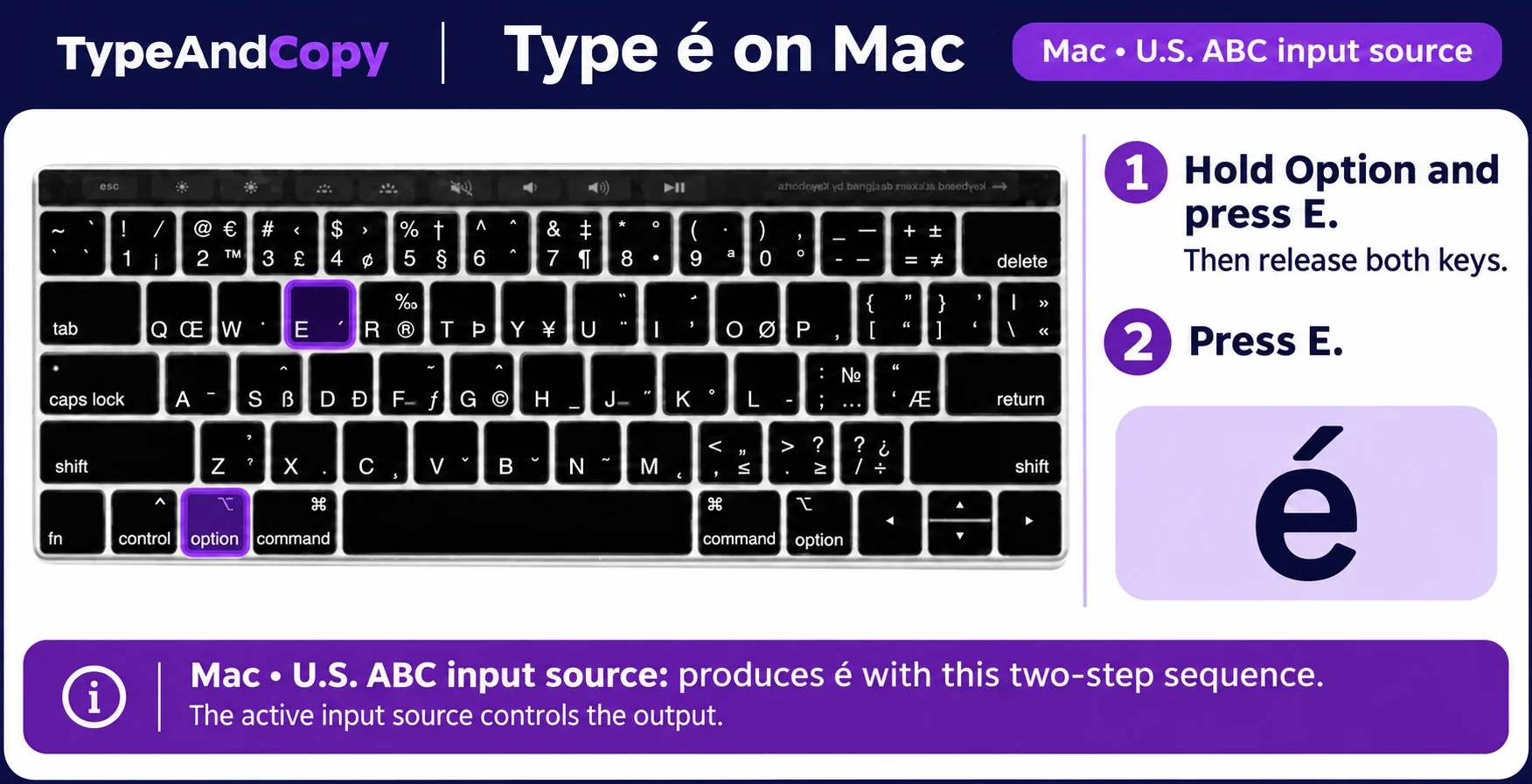
This illustration uses the U.S. ABC input source. Other layouts can use different shortcuts, and the labels printed on a keyboard do not by themselves tell you which input source is active. Check Keyboard Viewer before changing layouts.
With the ABC input source, use an accent key first, release it, and then type E. These are called dead-key sequences: the accent waits for the next letter.
| Letter | ABC keyboard sequence |
|---|---|
| é | Option + E, release, then E |
| è | Option + grave accent (`), release, then E |
| ê | Option + I, release, then E |
| ë | Option + U, release, then E |
For uppercase, hold Shift when typing the final E. In supported apps, you can also press and hold E, then choose a letter from the accent menu. Input sources and app behavior differ; see Apple’s guide to accent marks or use Keyboard Viewer to check your layout.
Use accented E in Microsoft Word
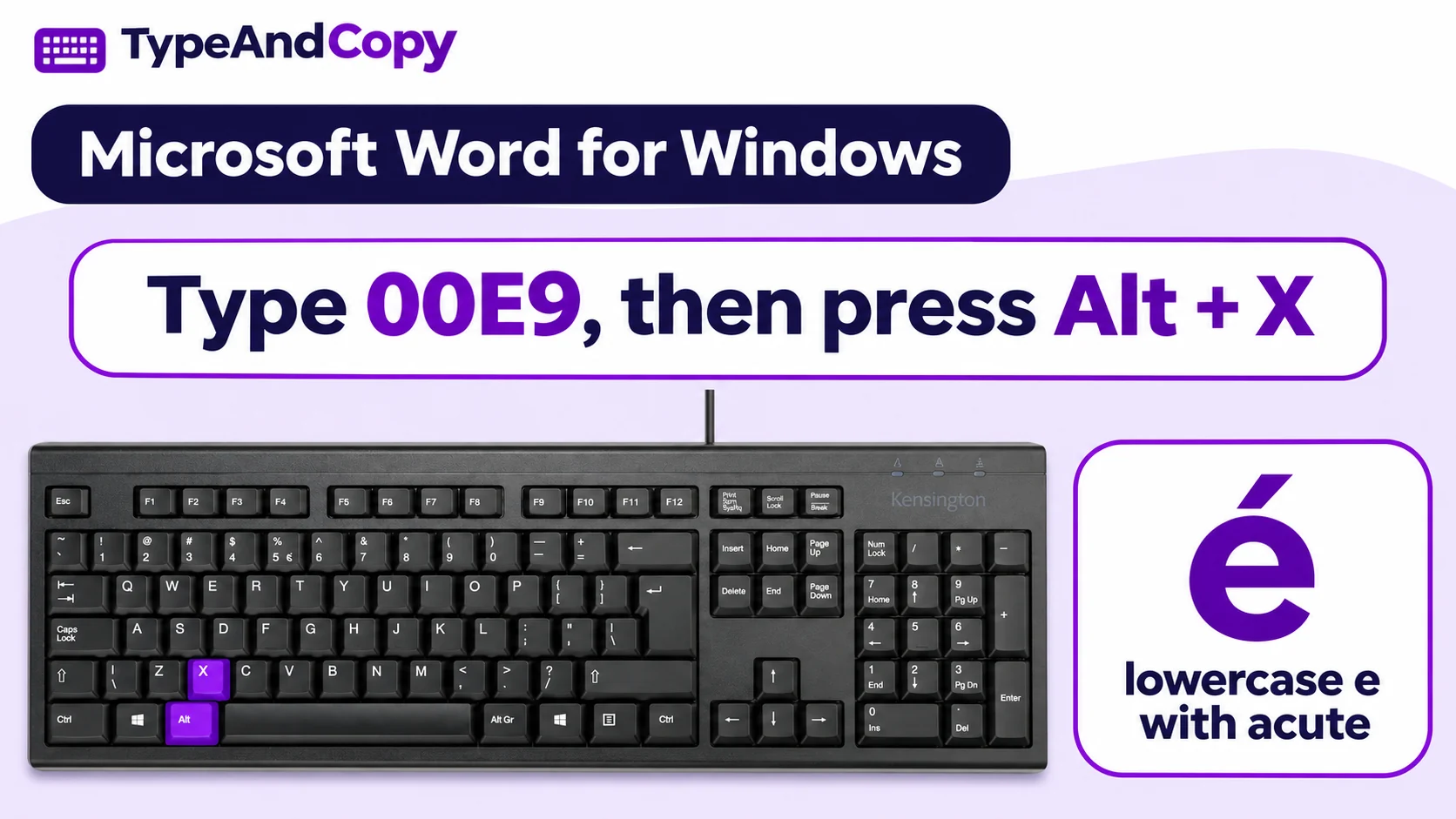
In Word for Windows, the first combination selects the accent. Release those keys before typing the letter. Microsoft lists these shortcuts in its accent shortcut reference.
- é: Ctrl + apostrophe, release, then E.
- è: Ctrl + grave accent, release, then E.
- ê: Ctrl + Shift + caret, release, then E.
- ë: Ctrl + Shift + colon, release, then E.
For an uppercase letter, use Shift with the final E. If a shortcut does not work on your layout or Word version, use Insert → Symbol → More Symbols or paste a copied character. In desktop Word for Windows, Unicode conversion is another option: type 00E9 and press Alt + X for é. Select only the code first if adjacent characters could be included. Microsoft explains Unicode character insertion.
Insert accented E in Google Docs
On a computer, open a document and choose Insert → Symbols → Special characters. Search for a descriptive name such as “Latin small letter e with acute,” then select the desired character. You can also copy the letter from this page. The special-characters picker is available in Docs and Slides; see Google’s instructions.
On iPhone and Android
In a text field, touch and hold the E key. If your keyboard offers accent choices, slide to the character and release. Tap Shift first if you need an uppercase letter. The available choices depend on the keyboard app, language and device; if the one you need is missing, copy it from the panel above.
If the shortcut does not work
- Wrong symbol: check the active keyboard layout and copy the exact accented letter as a fallback.
- Alt code does nothing: use a numeric keypad, check Num Lock, and try an application that supports Alt codes.
- Accent appears on its own: for a dead-key sequence, release the first combination before typing E.
- Empty box: try a different font or app that supports the character.
How to choose the right accent in a name or word
Start with the spelling supplied by the person or publication. Café uses é, while père uses è; replacing either mark changes the written word. These examples are useful for recognizing the marks, but the pronunciation of an accented E depends on the language and the word.
Capital letters can carry accents too. If you need É at the beginning of a sentence or in a name, copy the uppercase form directly rather than assuming an application will add the mark when it changes case. After pasting into a form, check the preview: a font may make the mark look small, and some systems have their own rules for accepted characters.
Typing several accented words
For an occasional character, copy one letter from the panel. If you are writing a longer passage, the Accent Keyboard lets you compose the text and copy it as a whole. A language-specific keyboard layout may be more convenient for regular writing. Remember that changing the input layout can change what your physical keys produce, even when the labels printed on them stay the same.
Frequently asked questions
How do I type a capital É?
Copy É from the panel, or use Alt + 0201 on a Windows numeric keypad in a supported app. On a Mac with the ABC input source, press Option + E, release, then press Shift + E.
Are é and è interchangeable?
No. They have different accent marks and may indicate different sounds or spellings. Follow the spelling of the specific word or person’s name.
Can I type accents without changing my keyboard?
Yes. Copy and paste a character, use your app’s symbol picker, or try a supported shortcut for your current layout. If you write in another language regularly, adding that language’s keyboard layout can be more convenient.
Need to compose a longer phrase? Try the Accent Keyboard, or browse characters in Copy Paste Symbols.